“Make it cinematic” leaves a lot to chance. “The roof vent opens slowly while the camera stays still” gives you something useful to work with.
Let’s use that small greenhouse shot to work through the choices: which input to use, what to write, and what to change when the result looks wrong.
When to use text, images, or reference photos
In Runway Gen-4.5, text-to-video describes both the scene and its movement. With image-to-video, the uploaded picture supplies the starting look, so the prompt can focus on what moves.
Use text when you want the model to invent the scene. Use a starting image when you’ve already chosen the framing, subject, or style. Use reference photos when the same person or object needs to appear in a new shot.
Choose the Right Starting Input
Choose where appearance comes from before writing movement.
- Text-to-videoDescribe
Words supply the visible scene and action.
- Name the subject and setting
- Direct the relevant movement
- Check model-specific sound support
- Image-to-videoAnimate
The starting image supplies the approved visual state.
- Check the crop and source details
- Describe what changes
- Avoid contradicting the image
- Reference-led videoIdentify
Assets guide known subjects in supported modes.
- Assign each asset a role
- Do not assume a locked first frame
- Match labels to the actual interface
Method note. Runway and xAI document different input modes. Check the selected model.
Based on the linked official guides, checked .
Starting from words
For our greenhouse, an example prompt is:
Interior view of a small glass greenhouse. A single roof vent above the central aisle slowly lifts outward on its hinge. The camera stays still. Soft overcast daylight and natural colors.
The important part is the opening vent. Its position and movement matter more than a string of words such as stunning, premium, or epic.
Starting from a picture
Runway’s image-to-video guide treats the picture as the first frame. It recommends describing movement, with exceptions for changes such as adding a new object or transforming something in the image.
With a good greenhouse picture, try a shorter instruction: The roof vent lifts slowly outward. The camera stays still. Check the picture first: is the hinge visible, and is there room for the vent to open?
Starting from references
xAI’s reference-to-video guide separates a reference that guides a subject’s appearance from an input that pins an exact frame. The model must support the control you choose.
A product photo can help identify a greenhouse in a new scene. An exact opening image is a different request. Our reference photo guide explains how to keep those jobs separate.
Write down what the shot needs to show
You don’t need a long production document. A few lines will stop you accepting a pretty clip that misses the point.
| Question | Greenhouse example |
|---|---|
| What happens? | One roof vent opens |
| Where is it? | Above the central aisle |
| What stays still? | The greenhouse frame and camera |
| How does it end? | The vent is open and still recognizable |
| What would make it unusable? | A melting roof or an extra vent |
| Draft length | Five seconds, chosen for this example |
If you also need a gardener walking in and a close-up of seedlings, plan separate shots. You can fix and trim them separately later. See how to build a longer video.
Give the model a visible action
Use actions you can see: open, slide, fold, turn, pause. “The vent starts moving” may leave you without a clean ending. “The vent opens, then holds” tells you what to look for.
Google’s video prompt guide covers subjects, actions, camera movement, lighting, and audio. You don’t have to use every element. It also warns that some advanced camera and lens requests have variable support.
For this shot, a fixed camera makes the hinge easier to judge. Choose a moving camera when it helps the shot. Add sound instructions only if your selected model and mode can produce sound; otherwise plan to add it in the editor.
If the video looks wrong, change one thing at a time
First name the problem. Is the picture wrong before anything moves? Is the camera drifting? Does the action stop too soon?
Here are possible revisions for our example. The observations are hypothetical—you would fill in your own after generating.
| If you see this | Try this first | Check again |
|---|---|---|
| The whole roof bends | Start from a clearer approved image | Do the roof bars stay in place? |
| The camera wanders | State that the camera stays fixed | Is the hinge still easy to follow? |
| The opening stops early | Simplify the action or allow enough time | Is the open vent visible at the end? |
The Gen-4 guide recommends starting simply and adding details one at a time. Save the prompt, input image, model version, settings, and reason for each change.
If you change the picture, model, action, and camera together, you won’t know which change helped. Set a spending limit too. When you reach it, simplify the shot or use a different edit rather than paying for endless variations.
Change One Thing, Then Check Again
A decision loop for your own attempts; no results have been invented.
- 01ObserveName it
Write the specific visible mismatch against the shot card.
- 02DiagnoseChoose
Input, prompt, supported mode, or editing decision?
- 03ReviseOne change
Keep other settings recorded. Stop at the spending limit.
Method note. A suggested revision loop, based on the official prompting advice.
Based on the linked official guides, checked .
Check the rules for your model
Negative prompts are a good example: the Gen-4 guide discourages negative phrasing, while Google’s guide describes a separate negative-prompt control. Those are different systems and fields. Adding “no” to every sentence is not a general fix.
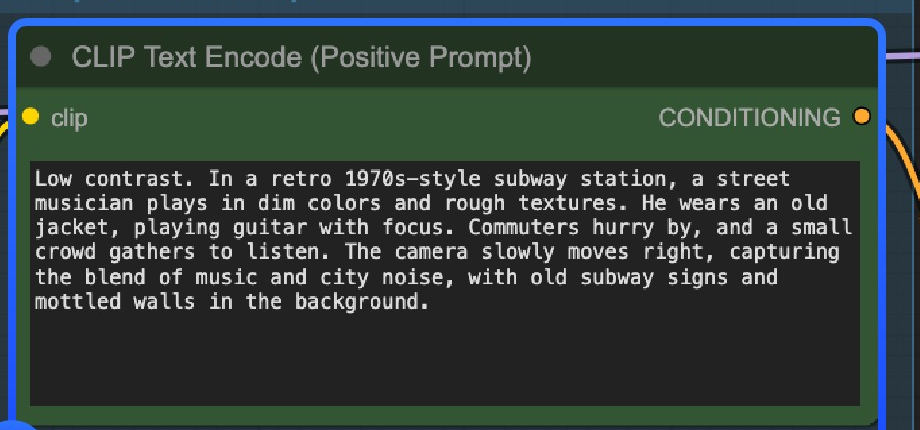
The ComfyUI screenshot above is cropped to the positive-prompt box. The official workflow also has a separate negative-prompt node; that does not mean another model uses it the same way. In the official Wan2.2 workflow, you edit the text-encoding nodes, check the selected model files, then run the graph.
Keep the model version with your saved prompt. Old tutorials can describe a different input mode or a control that your interface doesn’t have.
Keep the useful part and move on
Mark the start and end of the part you want to keep. Save that clip with its prompt and source image. An editor should be able to tell where it belongs without guessing which take you meant.
For a complete small project, use the $30 short-film plan. For the bill, compare generated footage with the part that survives your edit in AI video cost per minute.
Quick questions
How long should a prompt be?
Long enough to explain the shot clearly. There isn’t one best word count for every model. Remove repeats and contradictions, and check the model’s character or token limit.
Can a chatbot write the prompt for me?
It can help turn your idea into a draft or spot missing details. Check the result yourself: it may invent a setting or ask for motion that doesn’t fit your picture.
Can I reuse an image prompt?
Keep the idea, then add movement. If the picture is already your first frame, you usually don’t need to describe every visible detail again.
Will a fixed seed keep the character identical?
Don’t rely on it alone. Save the reference assets, model, and settings, and check the character in each shot.
Sources and method notes
Sources checked November 2, 2026. Media credits and licenses appear with each item.